Documentation
Figma Guide
Follow these steps to sign in to the delivered Figma account, retrieve email codes and check access.
You can change the account password. However, do not change the sign-in email address of the delivered Figma account.
1. Sign in to Figma
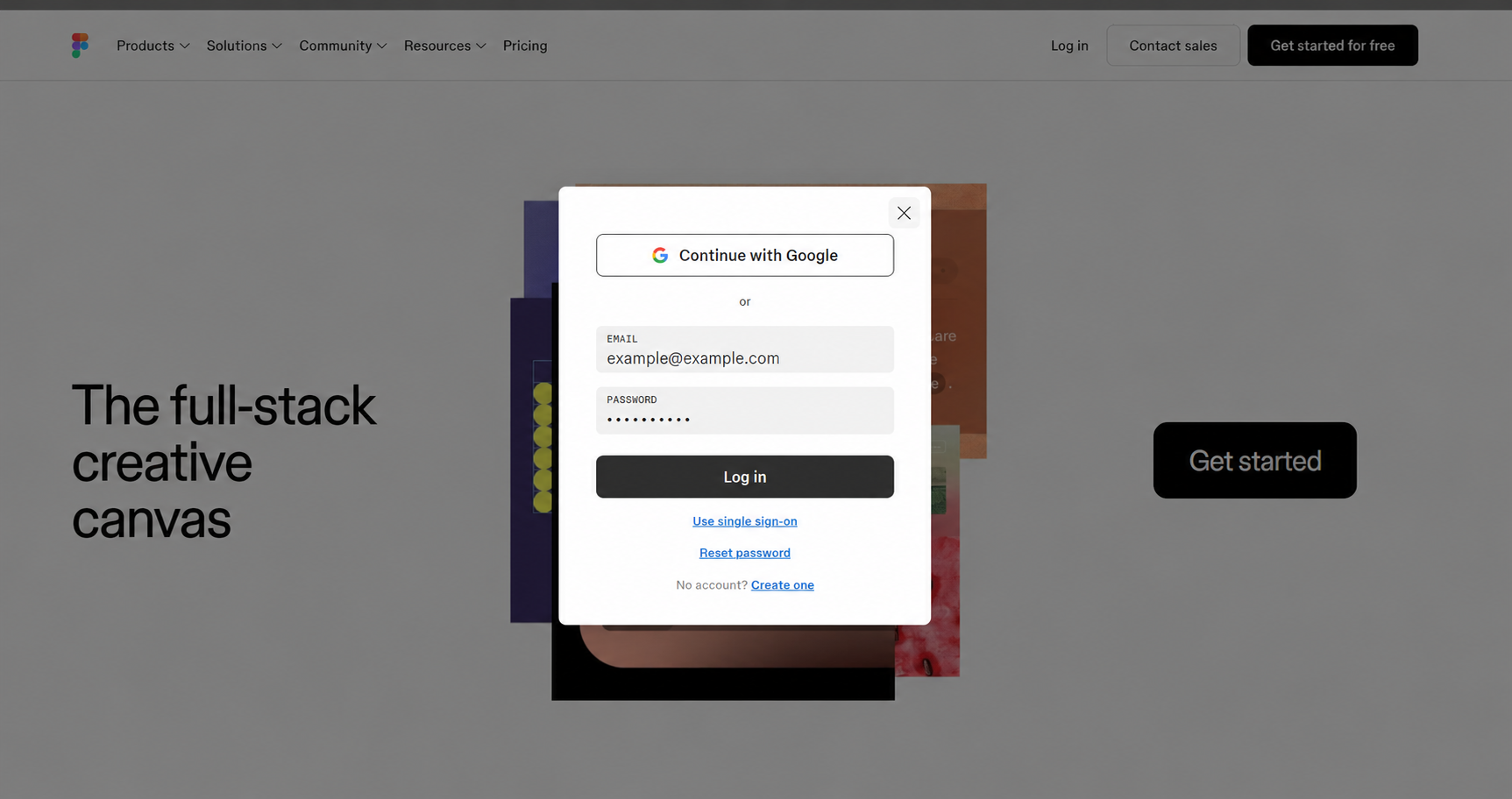
Open figma.com and click Log in. Enter the delivered email and password in the corresponding fields, then click Log in. Use email and password; you do not need Continue with Google.
2. How to get the email verification code
If Figma asks for an email verification code, open hotmail.com. Sign in to the mailbox with the same delivered email and password. Take the code from the latest Figma email and enter it on the Figma verification screen. Check Junk / Spam if the message is missing.
If Microsoft asks you to add a recovery email while signing in, add an address you own and can access, then complete the on-screen verification. You may need this mailbox again for future Figma codes. Adding a recovery email does not mean changing the Figma sign-in email.
3. Open a file and check Dev Mode
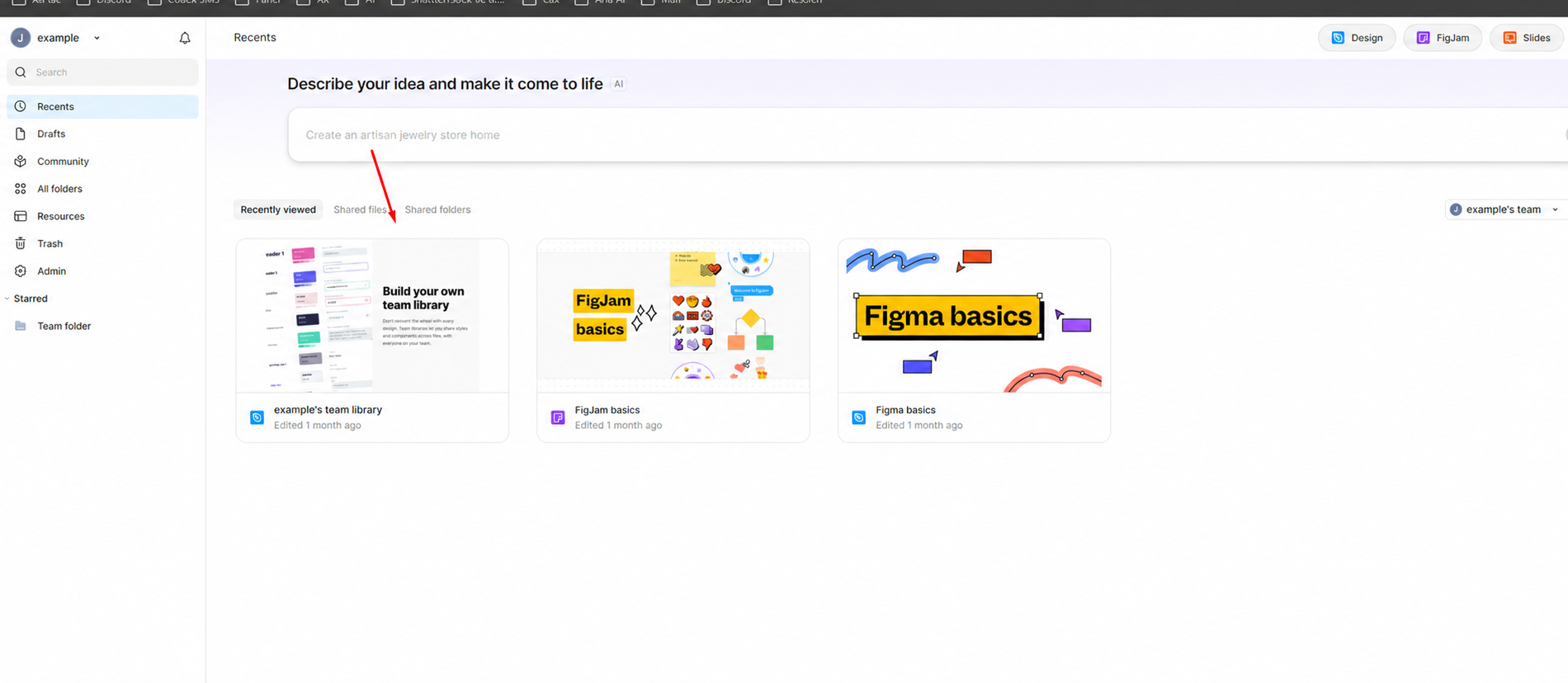
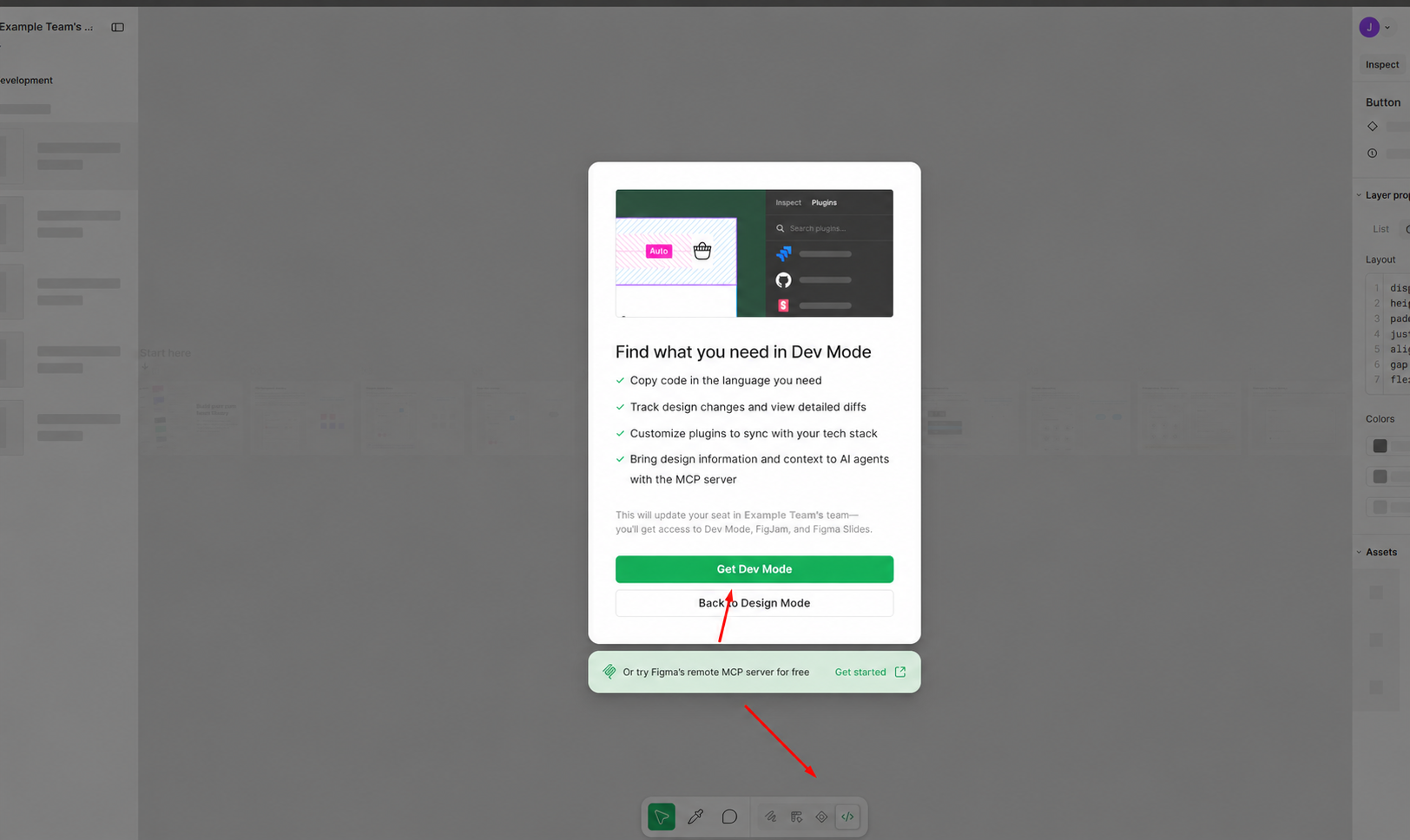
After signing in, click Recents. Open an existing Figma Design file in your Education team, or create a blank design file in that team. In the file, use the </> Dev Mode toggle in the toolbar, or press Shift + D.
If Get Dev Mode appears, check that the correct team is shown and continue only within the account’s existing access. If payment or a paid upgrade is requested, stop and contact the seller. Once Dev Mode opens, select an object to check that the inspection panel works.
4. How to check Education (Edu) status
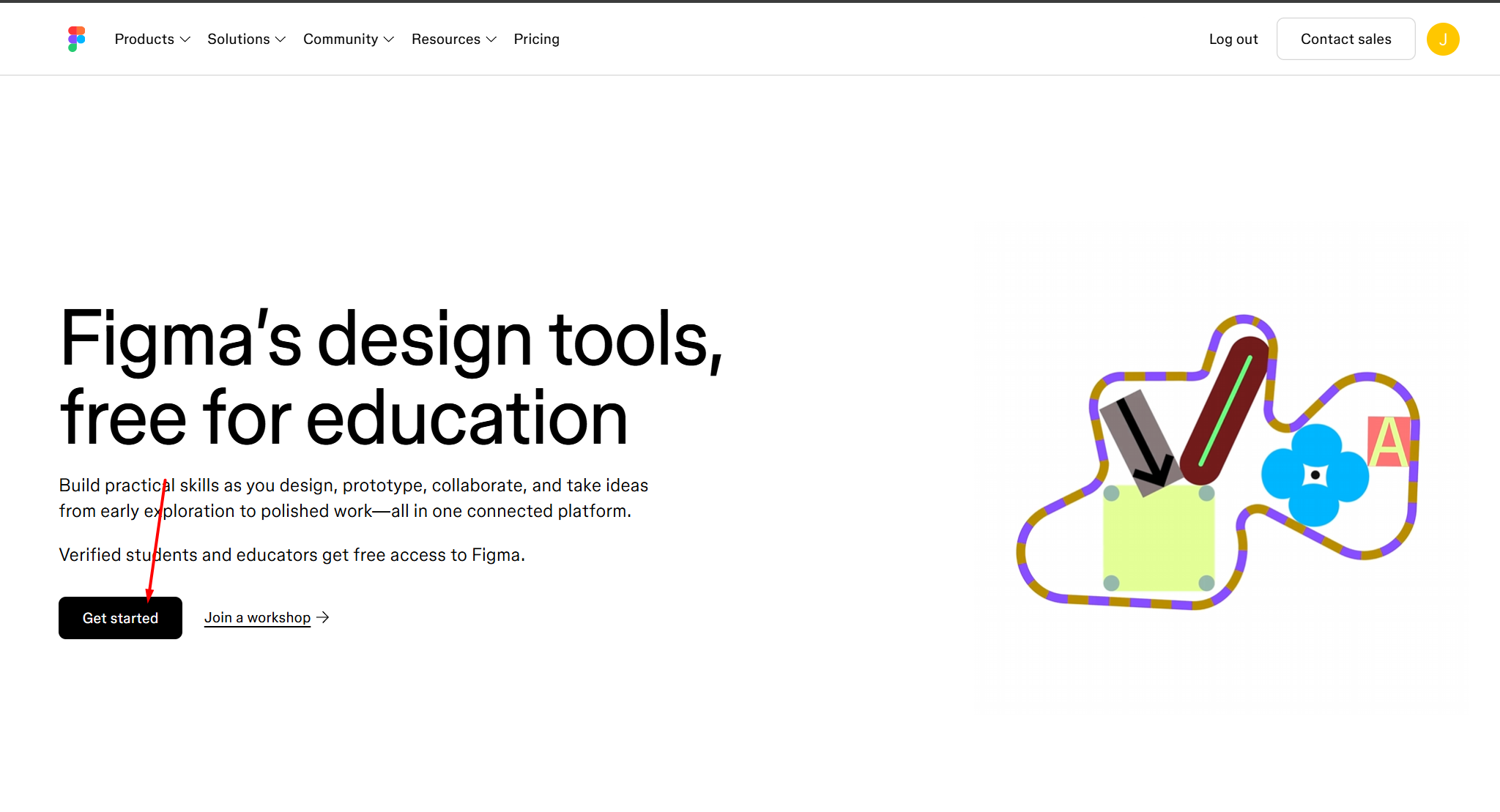
Go to figma.com/education/ and click Get started. Make sure you are signed in to the delivered account.
https://www.figma.com/education/
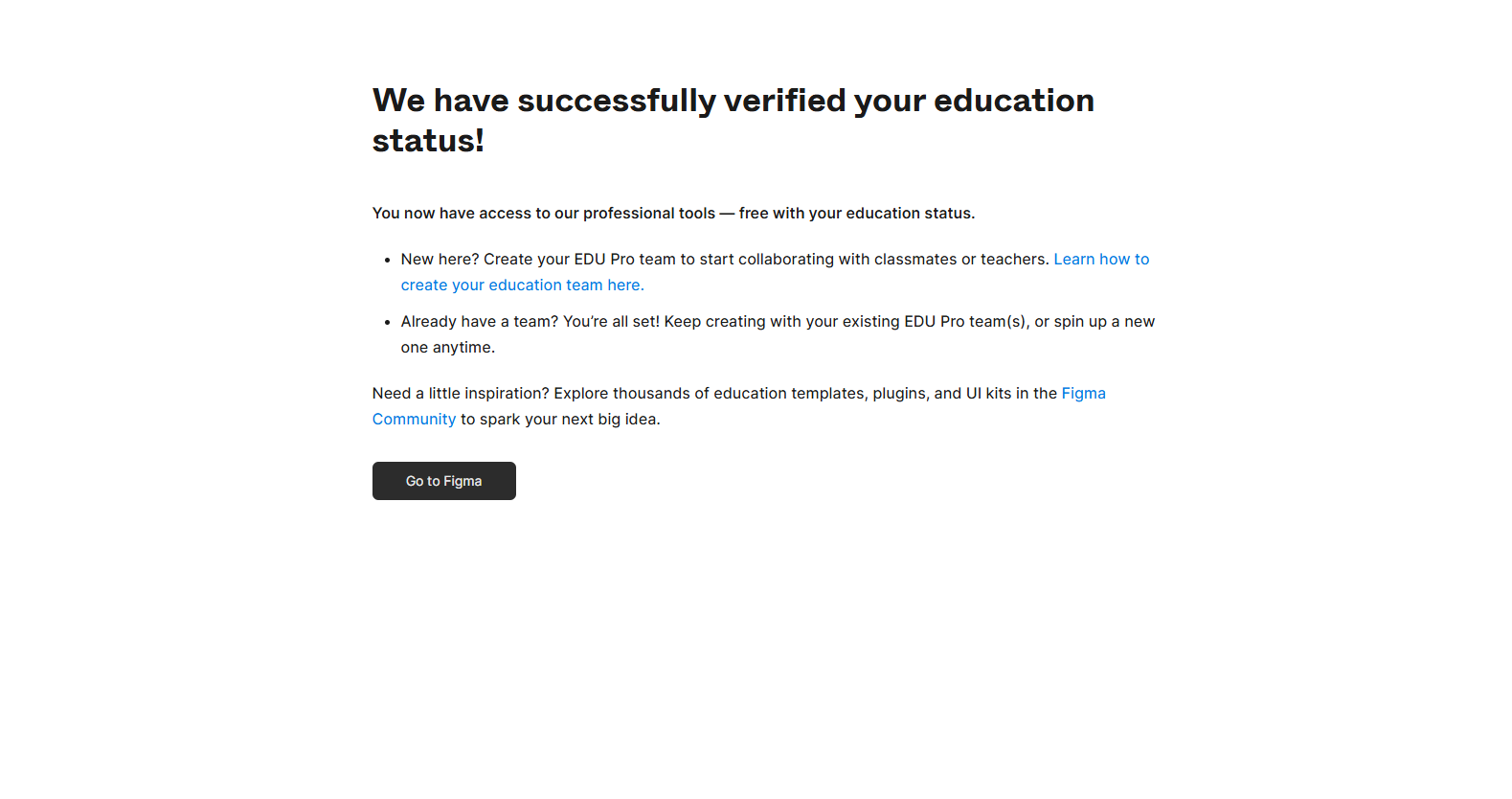
If “We have successfully verified your education status!” appears, the account’s education status is verified. Click Go to Figma to return. This confirmation alone does not guarantee every team permission or AI feature is enabled. If problems continue, check the Education team and Dev Mode access, then contact the seller. If reverification is requested, use only accurate information that belongs to you.
5. How to check AI credits
Open a Figma file where you have edit access. Open the file’s Main menu and choose AI balance. This shows used credits, remaining credits and the reset date.
Education credits are assigned per person, reset monthly and do not roll over. Always check the current balance in your account’s AI balance screen. AI access may depend on Education type, team settings and file permissions.
6. Important: Do not change the account email
You can change the account password. However, do not change the sign-in email address of the delivered Figma account.
Changing the email address may cause you to lose access to the existing team and Pro features provided through Education. Do not leave or delete the Education team. If you are unsure about a change, contact the seller first.
Account and team details in the images are examples. Use your own delivery details.